
Selecting Multiple Layers

ImagiTool Team
Learn how to select multiple layers quickly in ImagiTool Photo Editor for faster batch moves and edits.
Selecting one layer at a time is fine until your project gets busy. Multi-select helps you move faster when you need to adjust several elements together.
This guide stays focused on selection only. Grouping, resizing groups, and moving groups are covered in separate articles.
What You Will Learn
- How to select several layers with Ctrl/Cmd-click.
- How to select a full range with Shift-click.
- How to avoid common selection mistakes in dense layer stacks.
Step-by-Step Guide
Step 1: Open the Layers Panel
Press L to open Layers so you can see the full layer list.
Step 2: Select Non-Adjacent Layers
Hold Ctrl (Windows) or Cmd (Mac), then click each layer you want.
Use the same key plus click again to remove a layer from the current selection.
Step 3: Select a Continuous Range
Click one layer as your starting point. Then hold Shift and click another layer.
ImagiTool selects every visible layer row between those two points.
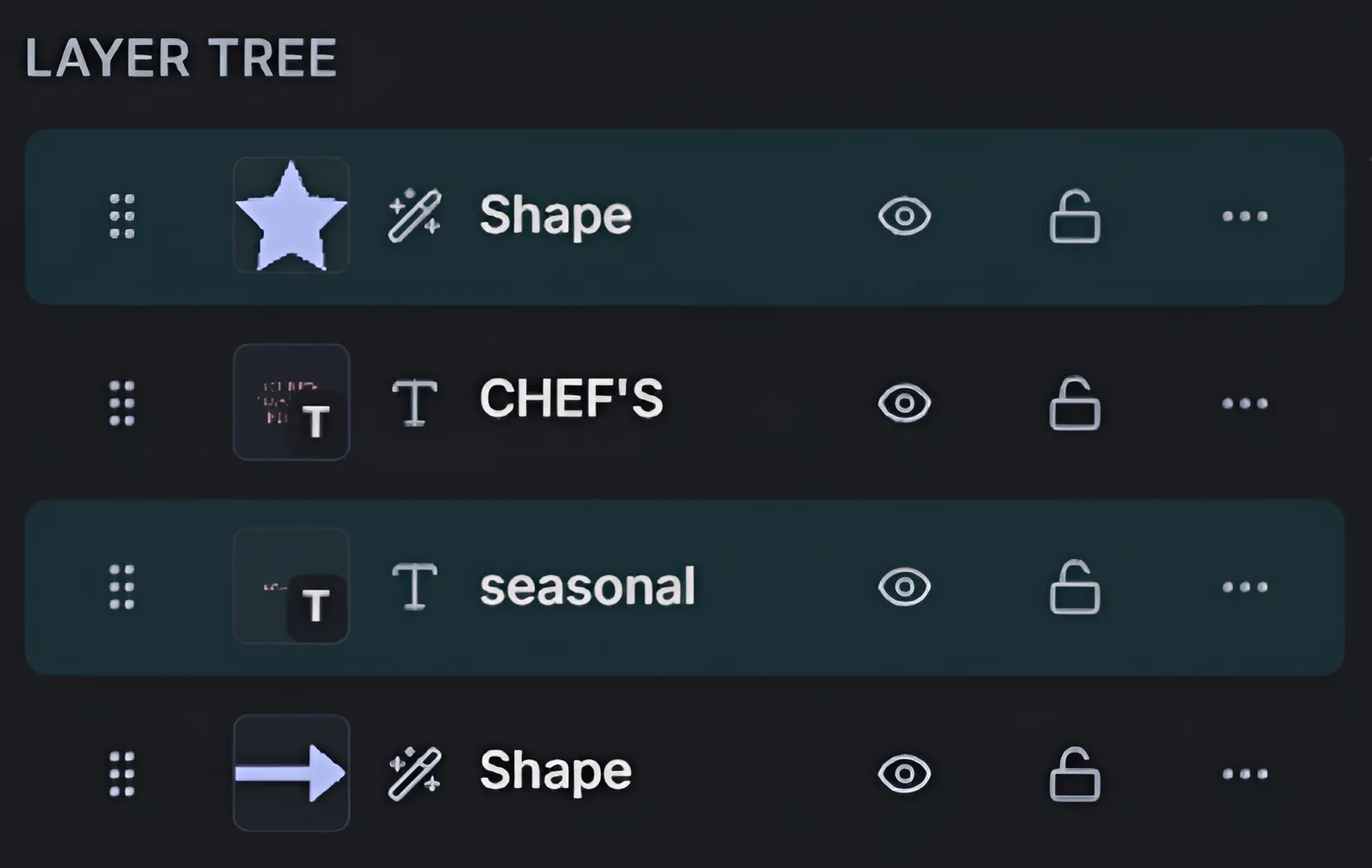
Step 4: Confirm the Active Multi-Selection
Check that the intended layers are highlighted in the layer list before you continue editing.
If the wrong set is highlighted, click a single layer to reset and build the selection again.

Key Selection Rules
- Ctrl/Cmd-click -> add or remove individual layers.
- Shift-click -> select a range from your anchor layer.
- Single click -> replace current selection with one layer.
Pro Tips
- Start from the layer list when objects overlap on canvas.
- Use Shift-click for quick block selection before batch edits.
- Recheck highlighted rows before moving or deleting anything.
Common Issues
Shift-click selected unexpected layers
Your anchor layer changed. Click the correct start layer first, then Shift-click the end layer.
Ctrl/Cmd-click removed a layer I needed
Press Ctrl/Cmd and click it again to add it back.
I can not tell which layers are selected
Use the Layers panel view and confirm highlighted rows before editing.