
Adding and Editing Layers

ImagiTool Team
Learn how to add new layers and edit existing layers in ImagiTool Photo Editor using Text, Graphics, Overlay, and Layers controls.
Adding layers is how you build a design piece by piece. Editing layers is how you stay in control as that design gets complex. In ImagiTool, you can add layers from core panels, then manage each layer from the Layers popup.
This guide stays focused on adding and editing layers. It does not cover deep blend-mode strategy or advanced grouping workflows.
What You'll Learn
- How to add new text, graphics, and overlay layers.
- How to edit a selected layer safely and quickly.
- How to keep layer edits organized using the layer tree.
Step-by-Step Guide
Step 1: Start with an Image, Then Open the Right Panel
- Open your base image from Image Manager.
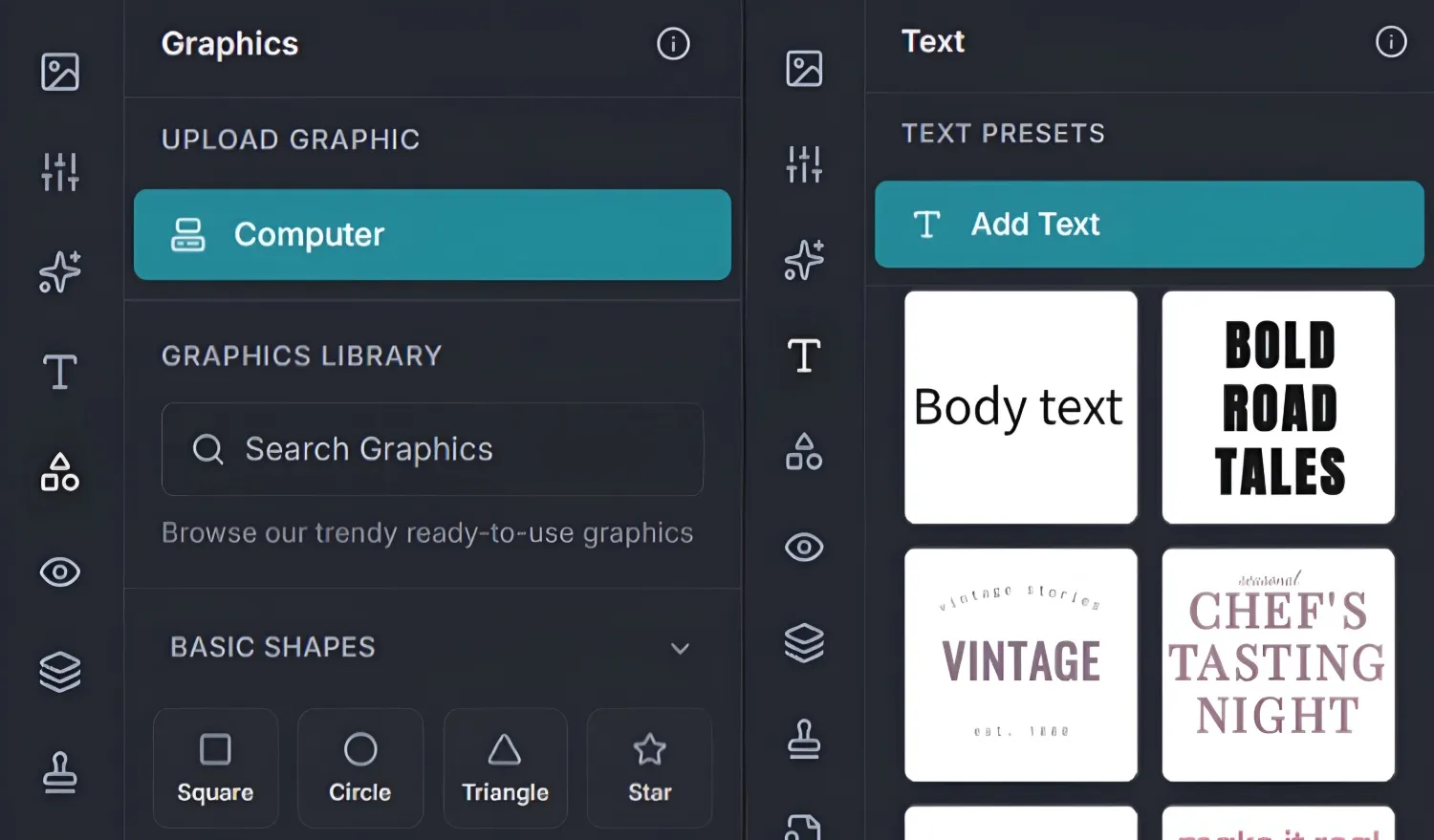
- Use Text to add text layers.
- Use Graphics to add shape or library graphics.
- Use Overlay to apply overlay assets as extra visual layers.
If your panel buttons are disabled, upload an image first.
Step 2: Add New Layers Intentionally
- In Text, click Add Text or choose a text preset.
- In Graphics, insert basic shapes (Square, Circle, Triangle, Star, and more) or use Search Graphics.
- In Overlay, pick a category and apply the asset you want.
Add one layer at a time while learning. It makes stack order easier to debug.
Step 3: Edit the Layer You Just Added
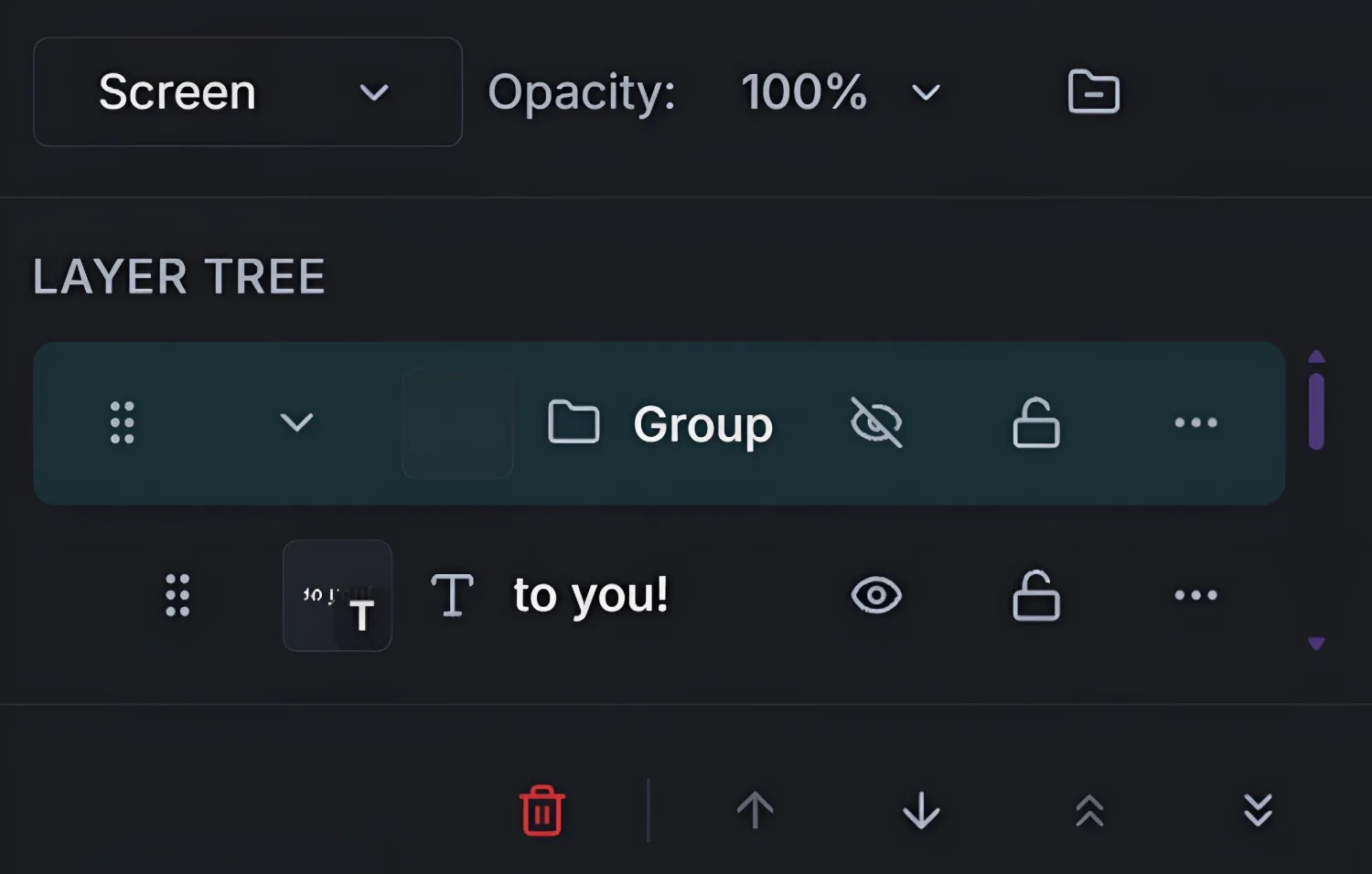
- Select the layer on canvas or in the layer tree.
- Move, resize, or rotate it to fit your layout.
- Use lock and visibility controls in the layer row while arranging nearby elements.
For text layers, you can open text editing and continue styling without rebuilding the layer.
Step 4: Refine in the Layers Popup
Open Layers (L) and use quick actions to keep edits clean:
- Rename a layer by double-clicking its name.
- Hide/show with the eye icon.
- Lock transform/content/full lock states as needed.
- Reorder with Bring Forward, Send Backward, Move To Top, and Move To Bottom.
- Remove with Delete Selected.
Key Actions Explained
- Add Text -> Creates editable text layers quickly.
- Insert Graphics -> Adds shape or asset-based visual layers.
- Overlay Apply -> Adds texture/effect style layers from categories.
- Rename Layer -> Keeps projects readable as layers grow.
- Visibility Toggle -> Lets you test alternatives without deleting.
- Layer Reorder -> Fixes front/back stacking conflicts fast.
Pro Tips
- Add background-supporting layers first, accent layers later.
- Rename important layers before the stack gets crowded.
- Lock finished layers before making nearby layout changes.
- Use
4,5,7, andLto move faster across add/edit flow.
Common Issues
Why can I not add a layer from Text, Graphics, or Overlay?
Those panels require an active image in the editor.
Why did my new layer appear behind other content?
Its stack position is lower. Move it forward in the Layers popup.
Why is my layer hard to select on canvas?
Select it from the layer tree, then edit from there.
Why are edits affecting the wrong element?
Another layer is selected. Confirm the active row in the layer tree first.