
Layers and Groups Released in ImagiTool Photo Editor
ImagiTool launches free Layers and Groups with multi-select, drag reorder, lock modes, blend and opacity controls, and flatten shortcuts for production workflows.

Deb Miller
Senior Visual Effects Artist & Photo Editor. Expert in atmospheric overlays, color grading, and digital compositing.

I once watched a campaign review collapse over 6 pixels.
The visuals were strong, the color work was approved, and the copy was locked. But because the headline, badge, and CTA were not managed as one unit, they drifted out of position during revisions. We lost half a day fixing avoidable stack chaos.
That pain is exactly why today we are launching a major layers and groups upgrade in ImagiTool Photo Editor. This is not a cosmetic update. It is a structural workflow release designed for real creative editing and real production delivery.
And yes, we are shipping these advanced controls for free.
Quick Answer
ImagiTool now includes free layers and groups workflows with a dedicated layer tree popup, multi-select, one-click group and ungroup, drag-and-drop reorder, visibility and lock controls, layer blend and opacity settings, and fast flatten/export-ready actions.
Start here: ImagiTool Photo Editor
Why Layers and Groups Actually Matter
- Creative freedom without destruction: Edit one element without wrecking the rest of the composition.
- Faster revisions: Multi-select and group controls cut repetitive moves.
- Production consistency: Layer order, locks, and visibility reduce accidental edits before handoff.
- Scalable projects: Complex stacks stay navigable as campaigns grow.
- Cleaner exports: Flattening and stack checks make final output predictable.
If your editor treats layers as an afterthought, every revision cycle gets slower and riskier.
Not Just Utility Tools: A Real Editing Platform
This release is part of a bigger shift. ImagiTool is not just resize, convert, and compress pages. It is an integrated editing platform where creative work and production work happen in one workflow.
- Build compositions with text, graphics, overlays, and image assets in one canvas.
- Organize everything with layer tree controls and group logic.
- Finalize with alignment, history, and export actions without switching tools.
That platform continuity is what makes teams faster.
8 Advanced Layers and Groups Features Released Today
1. Dedicated Layer Tree Popup (Bottom Bar + L Toggle)
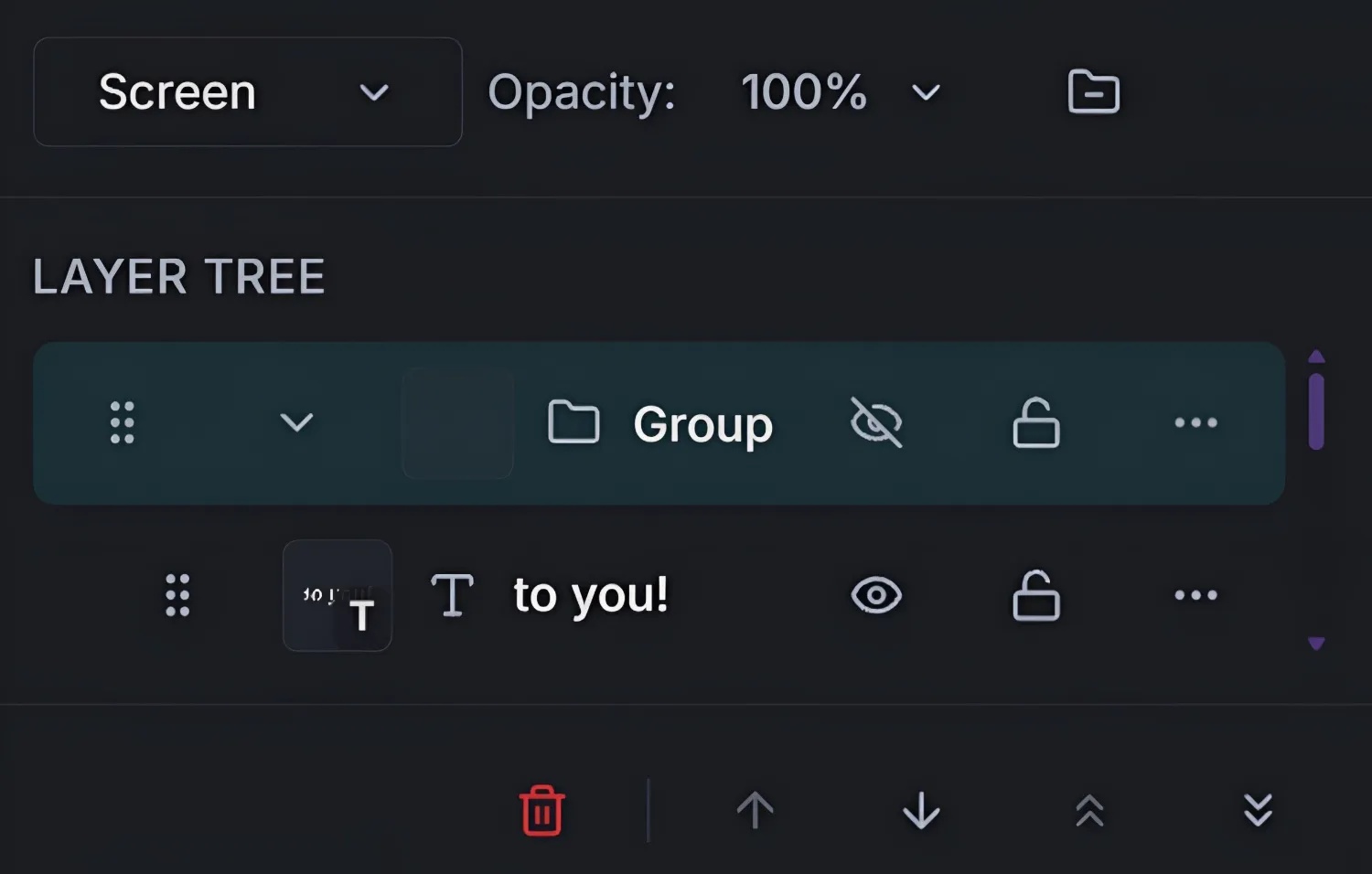
Why it works:
- Puts layer management where production users actually work.
- Opens from the bottom bar and via
Lfor fast keyboard flow. - Keeps stack reading and action controls in one compact UI.
Best for: Editors working with text + graphics + overlays in one project.
How to use it:
Open Layers from the bottom bar or press L, then manage selection and stack order directly from the layer tree.
Personal insight: When layer controls are always one keystroke away, decision fatigue drops fast.
2. Multi-Select That Matches Real Editing Habits
Why it works:
- Supports
Ctrl/Cmd + Clickfor non-adjacent picks. - Supports
Shift + Clickfor range selection. - Makes batch changes practical instead of tedious.
Best for: Repositioning several visual elements during layout passes.
How to use it: Build a selection set in the layer list, verify highlighted rows, then run your move or grouping action.
Personal insight: Most "slow editor" complaints are actually "single-select only" problems.
3. One-Click Group and Ungroup Workflows
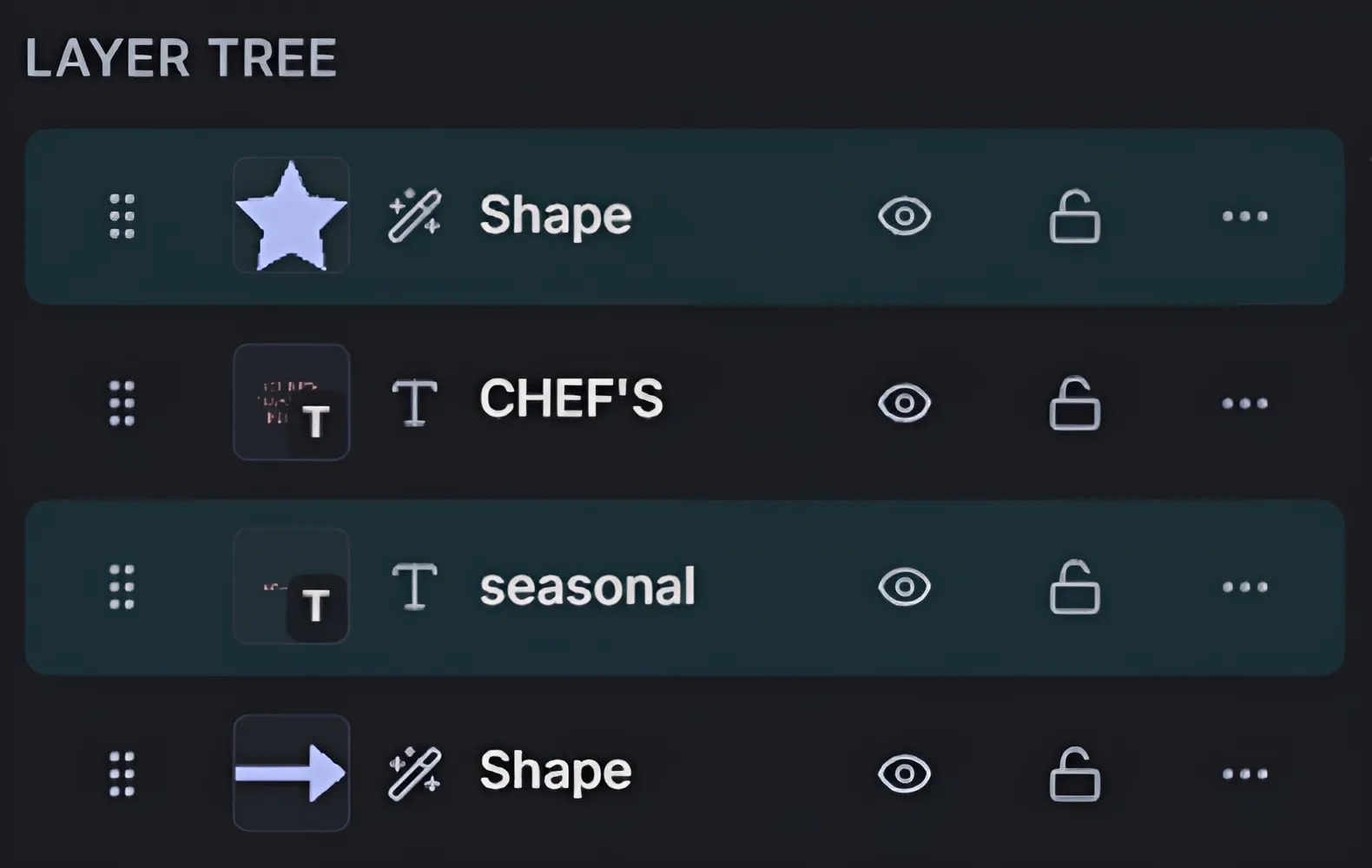
Why it works:
- Group selected layers into one transformable unit.
- Ungroup quickly when local edits are needed.
- Keeps related assets moving together when layouts evolve.
Best for: Logo + label blocks, headline + subtitle sets, and promo card modules.
How to use it: Select compatible layers, click Group, then move or scale as one unit. Use Ungroup when you need granular edits again.
Personal insight: Grouping early is the difference between controlled motion and layout drift.
4. Drag-and-Drop Reorder with Hierarchy Awareness
Why it works:
- Drag handles and insertion cues make stack movement clear.
- Supports before/after positioning and group-aware nesting.
- Prevents broken order logic during complex reshuffles.
Best for: Projects with deep stacks and mixed content types.
How to use it: Drag a layer row to target position in the tree and watch insertion markers before drop.
Personal insight: Visual insertion feedback removes most reorder mistakes before they happen.
5. Visibility + Lock Controls Built for Production Safety
Why it works:
- Toggle visibility instantly for comparison passes.
- Use lock states to prevent accidental edits.
- Includes practical lock behavior for different editing stages.
Best for: Team workflows where finished elements must stay stable.
How to use it: Use the eye icon for hide/show and lock controls to protect finalized elements before working nearby.
Personal insight: Lock discipline is the easiest way to stop "oops" edits on deadline days.
6. Layer Blend Mode and Opacity from the Same Workspace
Why it works:
- Adjusts blend and opacity directly from layer management UI.
- Speeds up visual refinement without tool-hopping.
- Keeps composition and style tuning in one flow.
Best for: Atmospheric edits, texture overlays, and subtle compositing.
How to use it: Select a layer, set blend mode, then fine tune opacity from the integrated controls.
Personal insight: Small opacity changes often improve realism more than heavy filter moves.
7. Fast Stack Actions for Real Batch Edits
Why it works:
- Includes Bring Forward, Send Backward, Move to Top, Move to Bottom, and Delete Selected.
- Handles batch operations from current layer selection.
- Reduces manual row-by-row corrections.
Best for: Last-minute hierarchy cleanup right before export.
How to use it: Select one or multiple layers, then run quick action controls from the layer action area.
Personal insight: Hierarchy controls are where "almost done" projects are actually finished.
8. Flatten Layers + Keyboard Workflow for Delivery
Why it works:
- Flatten visible layers for clean final outputs.
- Supports direct keyboard flow with
Ctrl/Cmd + Shift + E. - Complements
Llayer toggle for fast manage-to-export cycles.
Best for: Export prep, asset handoff, and final delivery steps.
How to use it: Run final stack check in Layers, then flatten visible layers from the bottom bar or keyboard shortcut.
Personal insight: Flattening should be deliberate and late, never your default working mode.
How to Use the New Workflow in ImagiTool
Ready to use the release today? Open ImagiTool Photo Editor and follow this sequence:
- Add text, graphics, and overlays as separate layers.
- Open Layers with
L. - Multi-select related elements with
Ctrl/Cmd + ClickorShift + Click. - Group related items for shared movement and scaling.
- Refine stack order and visibility using quick actions.
- Apply blend/opacity adjustments where needed.
- Flatten visible layers when export-ready.
Need deeper walk-throughs? Start with Introduction to Layers and Groups, then read Adding and Editing Layers, Selecting Multiple Layers, and Layer Properties. For speed, keep Keyboard Shortcuts open during your first week.
Why This Release Is Different
Many tools claim "layer support" but leave grouping, locking, stack control, and export prep fragmented across awkward flows. We built this as one connected system inside the editor so creators and production teams can move from concept to handoff without switching products.
That is the difference between a utility collection and a real platform.
For broader context, Adobe describes why layer-based and group-based workflows remain central in professional editing pipelines: Adobe Photoshop Layers and Groups.
FAQ
Are Layers and Groups free in ImagiTool?
Yes. The new Layers and Groups workflow is available in the free browser editor.
Can I group text and graphics together?
Yes, as long as the selected layers are compatible and selected together.
What is the fastest way to open layer controls?
Press L to toggle the Layers popup.
How do I flatten before export?
Use Flatten Layers in the bottom bar or run Ctrl/Cmd + Shift + E.
Is this only for designers?
No. It is useful for social media teams, ecommerce sellers, agencies, and anyone building multi-element image assets.
Final Take
This release makes ImagiTool stronger where serious editing teams live: structure, control, and speed. With the new layers and groups workflow, you can build creatively, revise confidently, and deliver production-ready visuals in one free platform.
Open the editor and try it now: ImagiTool Photo Editor


