
Precision Alignment Features Released in ImagiTool Editor
ImagiTool launches free Precision Alignment features with smart snap lines, live distance labels, rulers, guides, spacing suggestions, and settings controls.

Deb Miller
Senior Visual Effects Artist & Photo Editor. Expert in atmospheric overlays, color grading, and digital compositing.

I once delivered a clean-looking social campaign only to hear one painful sentence from the client: "Everything feels slightly off-center." They were right. The spacing was inconsistent, card gaps drifted by a few pixels, and text blocks were visually misaligned even though they looked "close enough" while editing.
That is exactly why we shipped a full precision alignment system inside ImagiTool. Today, we are releasing a major photo editor upgrade with smart snapping, live measurement intelligence, guide workflows, and spacing suggestions that usually require expensive desktop stacks.
And yes, this is available in our browser editor for free.
Quick Answer
ImagiTool now includes free precision alignment features in the photo editor: Smart Snap Lines, Live Distance Labels, Equal Spacing Detection, Rulers with Drag-Out Guides, Alt/Option Distance Overlay Mode, Smart Spacing Suggestions, and a dedicated Alignment Settings popup with snap tolerance control.
Try it now: ImagiTool Photo Editor
Not Just Another Utility Page
This release is part of a bigger shift: ImagiTool is a complete editing platform, not a pile of one-off tools.
- Creative workflow: Build the look with color and style controls in one canvas session.
- Production workflow: Align layouts precisely, apply batch branding, and export without jumping between apps.
- One ecosystem: Move from Replace Color to Photo Effects to Add Object to Photo without restarting your workflow.
Why Precision Alignment Actually Matters
- Professional output: Pixel-level alignment is the difference between "amateur" and "production-ready."
- Speed under pressure: Smart snapping and spacing logic remove repetitive manual nudging.
- Consistency at scale: Campaign assets, listings, and social templates stay visually coherent.
- Fewer review rounds: Live distance labels surface layout errors before export.
- Better collaboration: Clear guides and measurable spacing reduce subjective feedback loops.
When teams skip precision alignment, the hidden cost is constant rework and "something feels off" revision cycles.
7 Advanced Precision Features Released Today
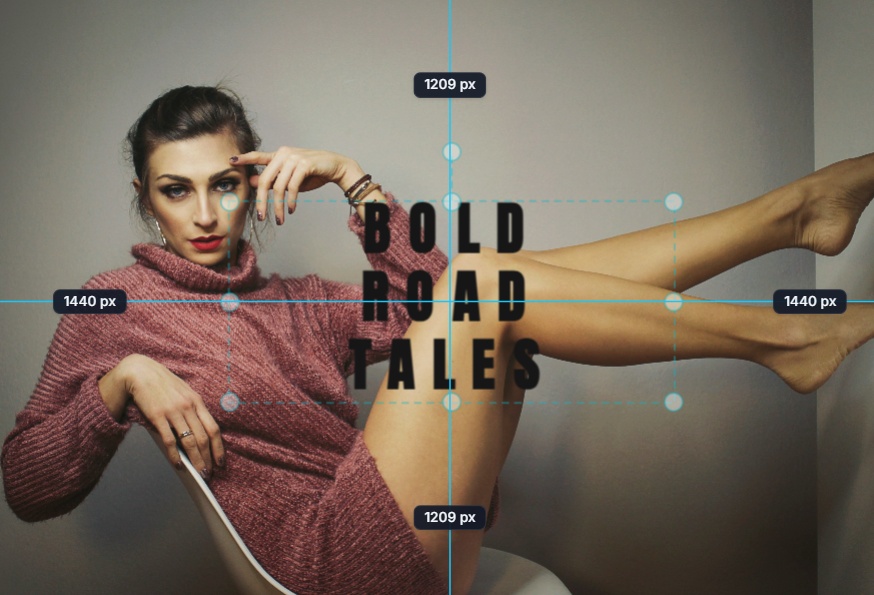
1. Smart Snap Lines (Center, Edges, Objects, Guides)
Why it works:
- Snaps to canvas center, object centers, object edges, text baselines, group bounds, and guides.
- Uses a configurable tolerance so snapping feels intentional, not sticky.
- Shows clear visual feedback at the exact moment an alignment lock happens.
Best for: Social creatives, ecommerce banners, product cards, and multi-element compositions.
How to use it: Drag objects near expected alignment points and let Smart Snap Lines lock placement. Hold Ctrl/Cmd to temporarily bypass snapping when free movement is needed.
Personal insight: The best snapping is invisible until you need it, then obvious for one second.
2. Live Distance Measurement Labels
Why it works:
- Displays nearest object and canvas-edge distances in real time.
- Shows delta movement and size feedback while you drag or resize.
- Keeps measurement context visible without opening a separate panel.
Best for: Anyone who has ever used arrow-key nudges 40 times to "eyeball" equal spacing.
How to use it: Move or scale an object and watch live px labels update instantly, including Delta x and Delta y.
Personal insight: Once you edit with live distance labels, going back to manual guessing feels prehistoric.
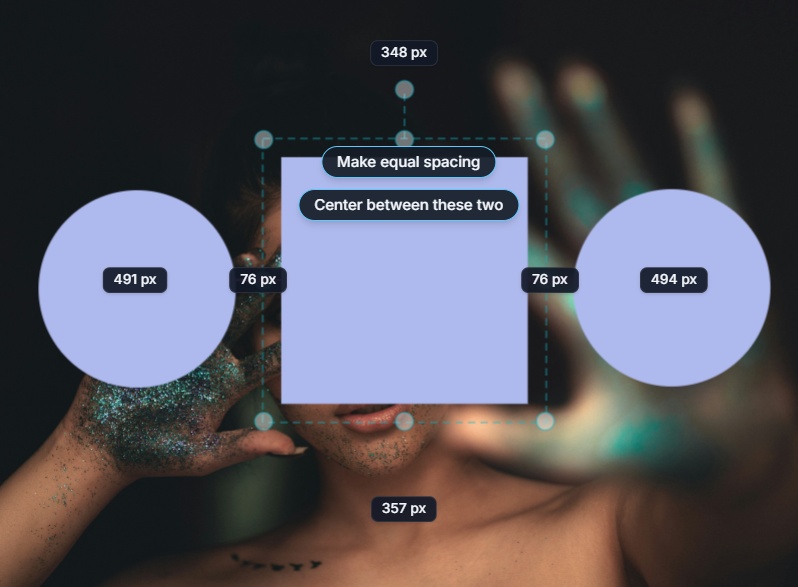
3. Equal Spacing Detection
Why it works:
- Detects near-equal gaps across neighboring objects.
- Highlights spacing guides when you approach a balanced layout.
- Snaps into equal-distance positions automatically within tolerance.
Best for: Grid-based promo graphics, product feature rows, and before/after collage layouts.
How to use it: Drag the middle or edge object in a row until spacing markers appear, then release when the equal-gap lock engages.
Personal insight: Equal spacing is one of those details users do not notice directly, but always feel.
4. Rulers + Drag-Out Guides
Why it works:
- Adds top/left rulers with zoom-aware ticks.
- Lets you drag out multiple vertical/horizontal guides.
- Supports guide repositioning, lock/hide/delete, and exact position edits.
Best for: Template creators, marketing teams, and repetitive layout workflows.
How to use it: Drag guides from rulers, place reference lines, then lock them while building your composition. Use guide controls to keep workspaces clean.
Personal insight: Guides are not old-school. They are still the fastest route to repeatable accuracy.
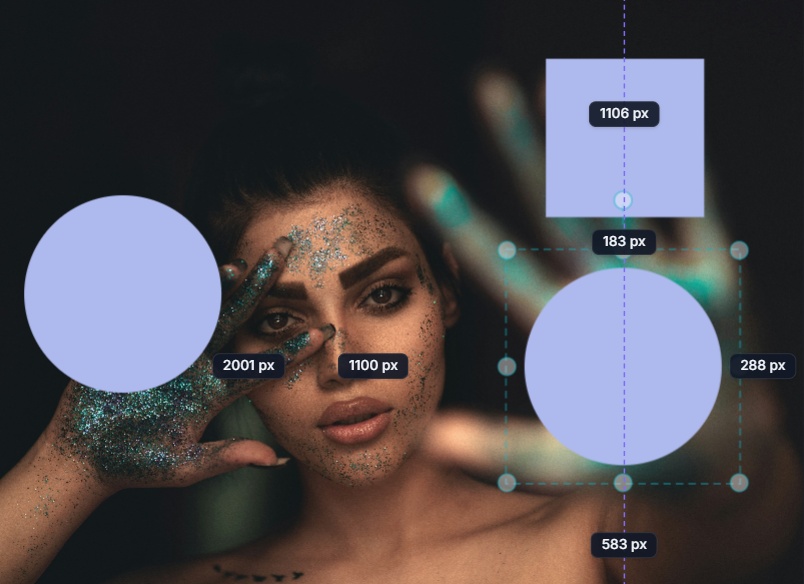
5. Distance Overlay Mode (Alt/Option Hold)
Why it works:
- On Alt/Option hold, it reveals contextual nearby distances.
- Surfaces alignment candidates without persistent UI clutter.
- Makes micro-adjustment decisions faster during tight layouts.
Best for: Designers who need temporary deep measurement insight without leaving flow state.
How to use it: Hold Alt/Option while hovering or dragging to reveal nearby spacing overlays and edge distances.
Personal insight: This mode is perfect for final polish passes right before export.
6. Smart Spacing Suggestions
Why it works:
- Suggests actions like "Make equal spacing" and "Center between these two."
- Offers click-to-apply suggestions and keyboard accept behavior.
- Reduces repetitive alignment operations in dense layouts.
Best for: Users building card rows, icon groups, and multi-object UI-like compositions.
How to use it: Move an element into context and accept suggestion chips when they appear.
Personal insight: Suggestion-driven spacing feels like having a precision assistant that only speaks when helpful.
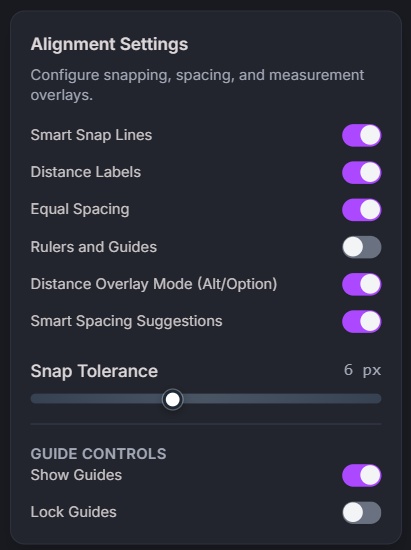
7. Alignment Settings Popup in Bottom Bar
Why it works:
- Adds a dedicated Settings button directly after Flatten Layers.
- Provides one compact panel for all alignment toggles.
- Includes snap tolerance slider for power-user control.
Best for: Editors switching between strict precision mode and faster freeform movement.
How to use it: Open Alignment Settings from the bottom bar, toggle features on/off, and tune snap tolerance to match your workflow.
Personal insight: Snapping should be configurable. Mystery snapping is what frustrates advanced users.
How to Use These Features in ImagiTool
Ready to apply the new alignment workflow? Use ImagiTool Photo Editor and run this sequence:
- Open your image composition in the editor.
- Click the new Alignment Settings button after Flatten Layers.
- Enable Smart Snap Lines and Distance Labels first.
- Add rulers and drag out guides for your main structure.
- Arrange objects using equal spacing detection and spacing suggestions.
- Hold Alt/Option for Distance Overlay mode during final refinement.
- Export once spacing, alignment, and visual rhythm are locked.
If you want broader workflow context, read 7 Essential Features of a Browser-Based Photo Editor and 10 Best Online Photo Editors for Quick Pro Edits in 2026.
Why This Release Is Different
Most browser tools stop at basic snap lines. A few premium products offer deeper spacing and measurement behavior, but rarely in a clean, context-aware workflow that stays fast with layered canvases.
ImagiTool now combines smart snapping, live measurement, spacing intelligence, and configurable precision controls in one free experience. More importantly, these features sit inside a broader platform built for both creative editing and production delivery, which is exactly how modern teams actually work.
For reference, you can see how Adobe documents smart guide workflows and spacing behaviors in professional tools: Adobe Smart Guides. You can also compare baseline guide and snap behavior in browser editors like Photopea Guides and Snapping.
FAQ
Are Precision Alignment Tools really free in ImagiTool?
Yes. The new alignment features are available in the free browser editor experience.
What can I snap to now?
You can snap to canvas center, object centers and edges, text baselines, group bounds, and user guides.
Can I control how strong snapping feels?
Yes. Use the snap tolerance slider in Alignment Settings to adjust sensitivity.
How do I temporarily disable snapping?
Hold Ctrl/Cmd while dragging to bypass snapping behavior for that movement.
Is this useful for photo editing, not just design layouts?
Absolutely. It helps align text overlays, badges, product callouts, before/after comparisons, and multi-layer visual compositions.
Final Take
Precision is no longer a premium-only luxury. With this release, ImagiTool gives creators and teams a faster path to clean, measurable, professional layouts directly in the browser. If your current editor still makes alignment feel manual and uncertain, this is your upgrade moment.
Open the editor, enable the new precision alignment tools, and feel the difference in your next project: ImagiTool Photo Editor


