
How to Add Snow to Photos: Easy Step-by-Step 2025 Guide
Learn how to add snow to photo in 3 simple steps. A complete 2025 guide for beginners to create realistic winter scenes without Photoshop.

Deb Miller
Senior Visual Effects Artist & Photo Editor. Expert in atmospheric overlays, color grading, and digital compositing.

As a photographer, I can tell you a secret: Capturing falling snow in-camera is a nightmare.
To get those dreamy white flakes to show up, you need a fast shutter speed (to freeze motion), a dark background (for contrast), and - most annoyingly - you need to stand in the freezing cold waiting for the perfect flurry. And even then, 9 times out of 10, the snow just looks like grey noise or dust spots on your lens.
But here is the good news: You don't need a blizzard to get the shot. In 2025, it is actually better to add snow to photo in post-production. Why? Because you get total control over the weather without the frostbite.
In this guide, I’ll show you the easiest way to transform a dry winter landscape into a snowy masterpiece, using tools that are much simpler (and faster) than Photoshop.
Why "Faking It" Looks Better
When you shoot real snow, you are at the mercy of nature. When you edit it in, you become the director.
- Control Particle Density: Decide if you want a light romantic dusting or a heavy storm.
- Depth of Field: Real photos have depth. By adding blurred flakes in the foreground and sharp ones in the background, you create a 3D effect that flat overlays can't match.
- Subject Clarity: In a real snowstorm, flakes cover your subject's face. In editing, you can ensure your subject remains the star.
The "Hard Way" (Photoshop Manual Method)
I want to be transparent - you can do this in Photoshop, and many pros do. But it involves:
- Finding a high-res "Snow Overlay" texture (usually a black image with white dots).
- Setting the Blend Mode to "Screen" to remove the black background.
- Applying a "Gaussian Blur" to create depth.
- Using a "Layer Mask" to paint snow off the face.
It works, but it’s a 20-minute process for one photo. If you are looking for a Photoshop alternative that gives you the same quality in seconds, keep reading.
The Easy Way: How to Add Snow to Photos with ImagiTool
This method gives you the power of professional layers - like Blend Modes and custom overlays - without the complexity of Photoshop. Here is how to do it.
Step 1: Upload Your Base Image
Open the Falling Snow Effect tool. Drag and drop your photo.
- Tip: Photos with darker backgrounds (like pine trees, night streets, or dark coats) make the snow pop the most.
Step 2: Choose the Perfect Snow Overlay
ImagiTool offers a library of different snow patterns. This is better than a single generic filter because you can pick the exact "type" of snow you need.
- For Portraits: Choose an overlay with fewer, larger flakes (bokeh style) to frame the face without covering it.
- For Landscapes: Pick a dense blizzard overlay to create that "winter wonderland" vibe.
Step 3: Dial in Intensity and Blend Mode
This is the secret to realism.
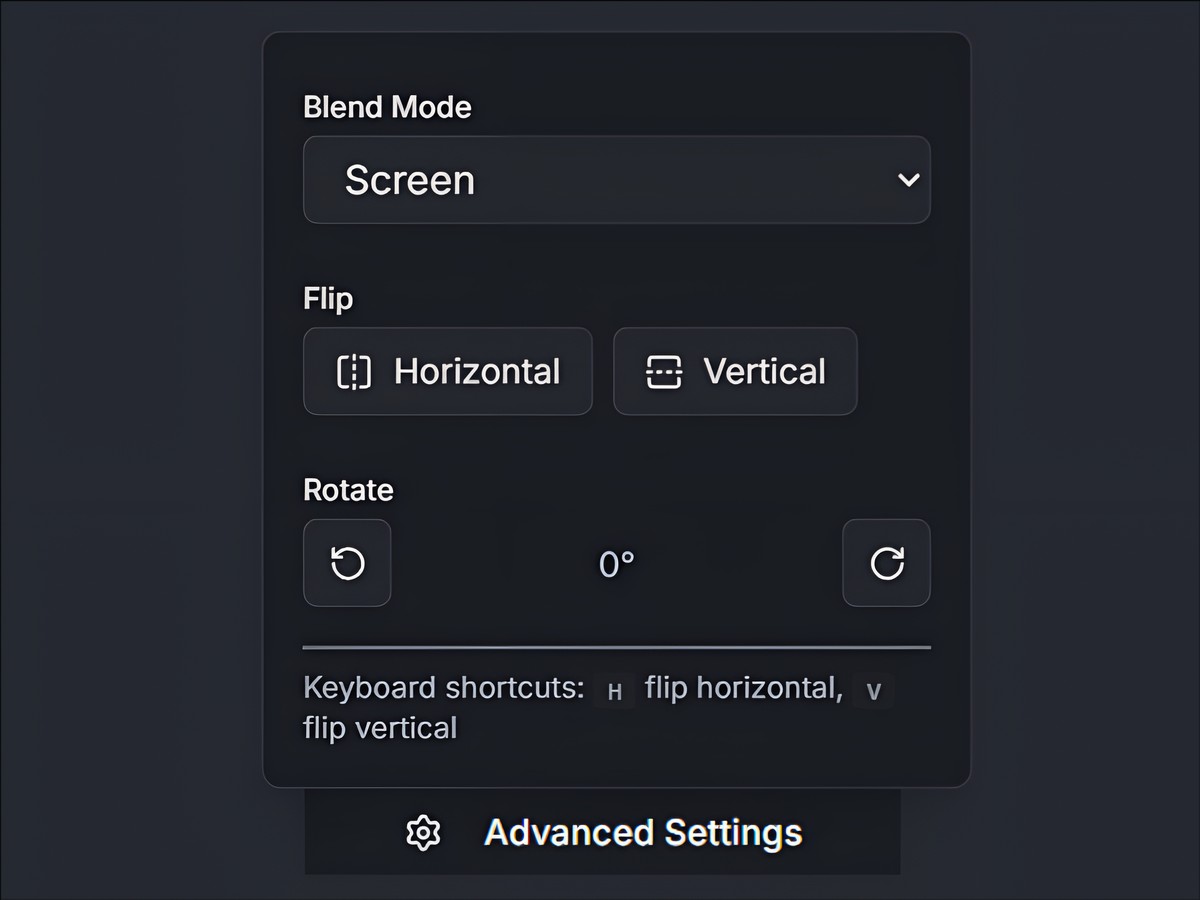
- Blend Mode: Ensure this is set to Screen. This is the industry standard for snow effects. It makes the black background of the overlay transparent, leaving only the pure white snow.
- Intensity: Don't leave it at 100%. Lower the intensity slightly (to around 80-90%). Real snow is semi-transparent water ice, not solid white paint.
Step 4: Customize the Wind Direction
Does the snow look too uniform? Change the flow instantly.
- Flip & Rotate: Use the Flip Horizontal or Rotate tools to change the direction the snow is falling. If the wind in your photo is blowing left, make sure your snow matches!
- Pro Tip: Flipping the overlay vertically can sometimes create a unique "floating ash" or "suspended magic" look for fantasy edits.
Step 5: Export
Hit download. You can instantly add snow effect to photo and save it as a high-quality JPG or PNG.
3 Pro Tips for Winter Photography Editing
Now that you have the snow, let's sell the effect.
1. Cool Down the Temperature
Snow implies cold. If your photo has warm, golden-hour lighting, the white snow will look out of place. Use a "Temperature" or "White Balance" slider to shift your image slightly towards blue/cyan.
2. Lift the Blacks
Snow reflects light into the shadows. In a real snowy scene, you rarely see "pure black." Lift your shadows slightly (make the blacks dark grey) to mimic this atmospheric haze.
3. Layer Your Effects
Don't stop at snow. For a truly cinematic look, check out our guide on How to Apply a Realistic Snow Effect on Photos, where we dive deeper into combining snow with fog and lighting effects.
Ready to choose the vibe? Here's how to pick the right snow filter to match moody, cozy, or vintage looks.
Conclusion
You don't need expensive gear or a degree in Photoshop to save a winter photoshoot. By understanding a few basic concepts like particle density and depth of field, you can turn any dull photo into a holiday card-worthy shot in under two minutes.
Ready to try it? Go add snow to photo now and see the difference yourself.
For more tool options and comparisons, here are the best online snow effect methods to pick the right workflow for your project.


