
Get the Winter Look: Best Snow Filter for Photos
Want that cozy Instagram winter aesthetic? Learn how to use the best snow filter for photos to create moody, cinematic edits in seconds.

Deb Miller
Senior Visual Effects Artist & Photo Editor. Expert in atmospheric overlays, color grading, and digital compositing.

Scroll through TikTok or Instagram right now, and you will see it: The "Cozy Winter" aesthetic.
It’s not just a picture of snow. It’s a vibe. Darker lighting, desaturated colors, thick knitted scarves, and - crucially - a soft, cinematic snowfall that adds texture to the image.
Creators aren't waiting for a blizzard to get this look. They are building it in post-production. But here is the mistake most people make: they use a cheap, sticker-like snow filter for photos that ruins the mood.
If you need the exact workflow, follow this step-by-step snow effect guide before applying your overlays.
If you want your feed to look like a high-end lifestyle magazine rather than a scrapbook, you need to stop using "filters" and start using "overlays." Here is how to nail the 2025 winter aesthetic.
The "Winter Aesthetic" Recipe
To get that moody, "Dark Academia" winter look, snow is just one ingredient. You need to prep your photo first.
- Drop the Exposure: Winter is dark. Lower the brightness of your photo slightly to make the whites of the snow pop.
- Desaturate: Winter isn't neon. Lower the saturation, specifically on yellows and oranges, to cool down the image.
- Add Texture (The Snow): This is where the magic happens. You don't want big, cartoonish flakes. You want a "texture" of snow that feels like film grain.
Why Most "Snow Filters" Fail
Apps like Snapchat or basic Instagram filters apply snow on top of everything - including your face. It looks flat and fake because it ignores the physics of light.
To get the pro look, you need a tool that lets you control the Blend Mode. This blends the snow pixels with the light pixels of your photo, making it look like the snow is in the scene, not on the screen.
How to Create the Look with ImagiTool
You can instantly add snow effect to photo edits using ImagiTool to achieve this exact aesthetic. Here is the workflow for a "Moody Winter" post:
Step 1: Upload Your "Moodiest" Photo
Open the Falling Snow Effect tool.
- Aesthetic Tip: Photos taken on overcast days or during "Blue Hour" (just after sunset) work best.
Step 2: Select the "Falling Snow" Overlay
For this aesthetic, we want texture. Choose a snow overlay that is dense but has small particles. We aren't looking for individual flakes; we are looking for "atmosphere."
Step 3: The "Screen" Mode Secret
Set the Blend Mode to Screen.
- This is non-negotiable. Screen mode makes the snow interact with the light in your photo, giving it that glowing, ethereal quality you see on Pinterest.
Step 4: Lower the Intensity
We want the vibe, not a distraction.
- Lower the Intensity slider to about 60-70%.
- The goal is for your followers to feel the cold, not to count the snowflakes.
Step 5: Direction Matters
Is your subject looking to the left?
- Use the Flip Horizontal tool to make the snow blow into their face (for drama) or behind them (for depth).
- Pro Tip: Use Rotate to create a "diagonal" fall, which implies wind and makes the photo feel more dynamic.
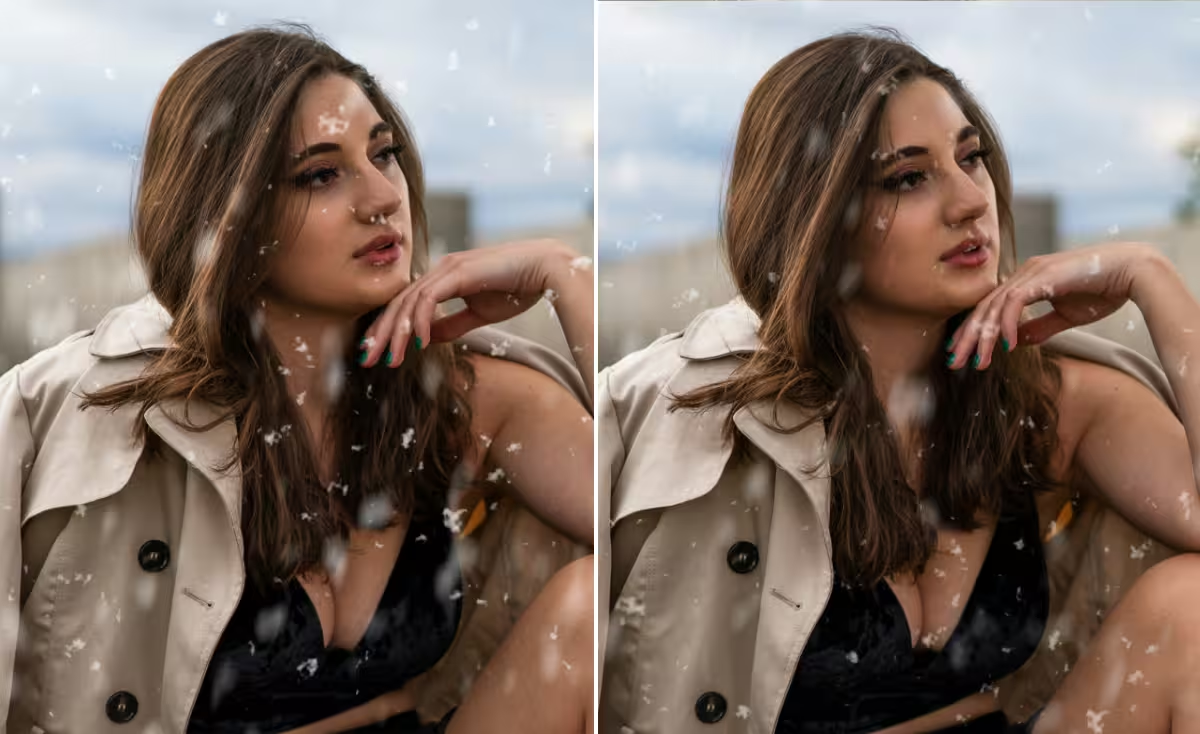
3 Trending Winter Styles for 2025
1. The "Silent Night"
- Base: Night photo with streetlights.
- Snow: Heavy overlay, low intensity.
- Vibe: Lonely, peaceful, cinematic.
2. The "Cozy Coffee"
- Base: Hands holding a mug, window in background.
- Snow: Apply the effect, but use a masking tool (if editing further) or choose an overlay that focuses snow on the edges, leaving the mug clear.
- Vibe: Warmth amidst the cold.
3. The "Vintage Blizzard"
- Base: Black and white photo.
- Snow: High intensity, large flakes.
- Vibe: Timeless, nostalgic, 1950s cinema.
Want more stylistic twists? Explore creative snow filter ideas to remix this aesthetic beyond winter looks.
Final Thoughts
Your social media feed is your digital gallery. Don't clutter it with cheap effects. By using a high-quality snow filter for photos that allows for blending and intensity control, you elevate your content from "snapshot" to "story."
Ready to curate your winter grid? Add snow effect to photo now and watch the likes freeze in place.
