
10 Best Ways to Add Snow Effect to Photos Online (2025 Guide)
Compare the top 10 free tools to add snow effect to photo online. From ImagiTool to Canva, find the best realistic snow overlays for your winter edits.

Deb Miller
Senior Visual Effects Artist & Photo Editor. Expert in atmospheric overlays, color grading, and digital compositing.

I still remember the first time I tried to "winterize" a client's holiday campaign. I spent hours dragging generic snowflake clipart onto their product photos. The result? It looked like a cheap sticker collection, not a winter wonderland. The client hated it, and I learned a valuable lesson: Atmosphere is everything.
To add snow effect to photo online free of charge doesn't mean you have to sacrifice quality. But with dozens of tools promising "instant winter," how do you know which ones create realistic depth and which ones just slap white dots on your image?
In this guide, I’ve tested and ranked the 10 best tools for 2025, focusing on realism, ease of use, and workflow speed.
Want the fastest execution? Start with this full walkthrough to add snow, then pick the tool below that matches your style.
Planning campaigns? Check these holiday ad snow ideas to match tools with seasonal creative angles.
Why "Realistic" Snow Matters (More Than You Think)
Before we dive into the tools, let's talk about why the quality of your snow matters.
- Depth Perception: Real snow falls in layers. You need large, blurred flakes in the foreground and smaller, sharper flakes in the background.
- The "Sticker" Effect: Cheap overlays look flat. Professional effects use transparency and opacity to blend with the lighting of your original photo.
- Emotional Impact: A realistic winter scene evokes coziness and nostalgia. A bad edit just looks like... well, a bad edit.
If you ignore these principles, your holiday marketing or social posts will feel artificial, lowering engagement and trust.
1. ImagiTool (The Specialist's Choice)
When you need to add snow effect to photo online free without navigating complex menus, ImagiTool is the purpose-built solution. Unlike generic editors, its snow engine is designed specifically for atmospheric depth.
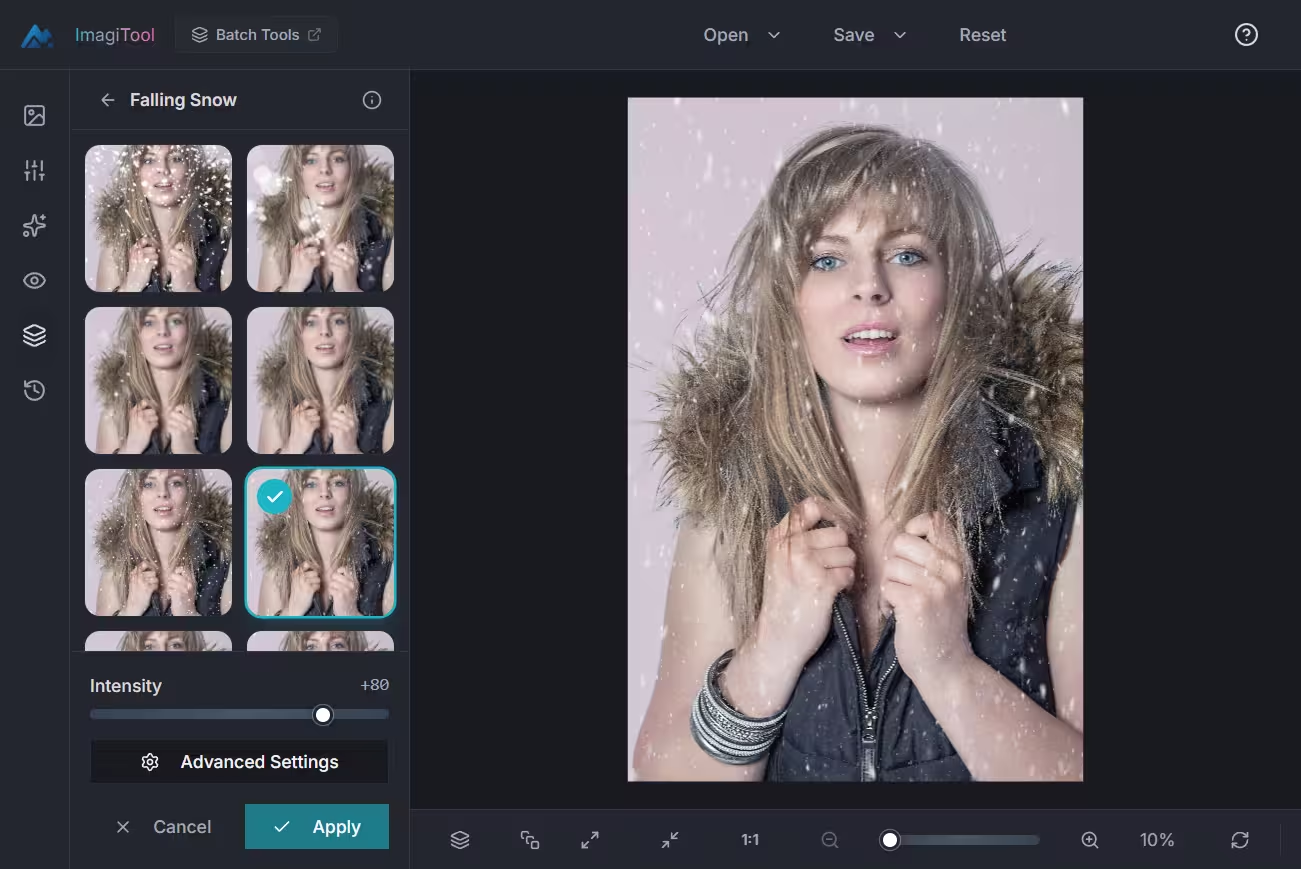
- Why it works: It provides a curated library of professional snow overlays. You can flip, rotate, and adjust intensity, ensuring the snow falls exactly where you want it.
- Best for: High-quality social media posts, product photography, and quick holiday cards.
- Placement tips: Use the "Intensity" slider to control the visibility. Keep it subtle for portraits.
- Personal Insight: I love that it doesn't require a signup. I can jump in, upload, apply the effect, and download in seconds. It's my go-to for quick client mockups.
2. Canva
Canva is the giant of design, and its library of "Elements" includes thousands of snow overlays.
- Why it works: Massive variety. You can find everything from realistic falling snow to cartoonish snowflakes.
- Best for: Creating full holiday flyers or social media graphics where text is also involved.
- Placement tips: Search for "Snow Overlay" in Elements and lower the transparency to 70% to blend it better.
- Personal Insight: Great for design, but for pure photo editing, managing layers can get a bit clunky compared to a dedicated photo tool.
3. Fotor
Fotor offers one-tap "Winter" filters that apply color grading along with snow effects.
- Why it works: It combines color correction (cooling the image) with the snow particles, creating a cohesive look.
- Best for: Beginners who want a "one-click" solution.
- Placement tips: Adjust the intensity slider. Often the default is too strong.
- Personal Insight: The effects are solid, but the watermark on the free version can be a dealbreaker for professional use.
4. Adobe Express
The web-based sibling of Photoshop, offering high-quality assets.
- Why it works: Access to Adobe Stock assets means the snow overlays are often cinema-quality.
- Best for: Users who already have an Adobe account or want premium assets.
- Placement tips: Use the "Blend Mode" options (like Screen or Overlay) to make the black background of snow textures disappear perfectly.
- Personal Insight: Powerful, but the signup wall adds friction if you just want a quick edit.
5. Pixlr
A robust layer-based editor that feels like a lightweight Photoshop in your browser.
- Why it works: Full control over layers. You can mask out snow from faces or important product details.
- Best for: Advanced users who want total control over where the snow falls.
- Placement tips: Add a snow overlay as a new layer and use the Eraser tool with a soft edge to remove flakes from the subject's eyes.
- Personal Insight: It's powerful, but the interface is ad-heavy on the free tier.
6. BeFunky
Known for its "Artsy" effects, BeFunky has a dedicated overlay section.
- Why it works: Offers creative, stylized snow effects that look like paintings or sketches.
- Best for: Artistic projects or scrapbooking.
- Placement tips: Combine the snow effect with a "Vignette" to draw focus to the center of the snowy scene.
- Personal Insight: Fun for personal projects, less so for realistic commercial work.
7. Photopea
Basically Photoshop in a browser.
- Why it works: You can load custom
.ABRbrushes or.PATpatterns for snow. - Best for: Pros who are away from their main workstation.
- Placement tips: Use a "Motion Blur" filter on your snow layer to simulate wind.
- Personal Insight: The learning curve is steep if you don't know Photoshop, but the power is unmatched for a free tool.
8. LunaPic
An older tool, but it supports animation.
- Why it works: One of the few free tools that easily exports falling snow as a GIF.
- Best for: MySpace-style (retro) aesthetics or simple animated memes.
- Placement tips: Don't overdo the speed settings, or it looks chaotic.
- Personal Insight: The interface is dated, but it gets the job done for simple animations.
9. Instasize
Focused entirely on social media formatting.
- Why it works: Great for resizing your snowy photo for Stories, Reels, or Posts immediately after editing.
- Best for: Influencers and mobile-first creators.
- Placement tips: Watch your margins! Ensure the snow doesn't obscure the edges where UI elements (like the Like button) will be.
- Personal Insight: Convenient, but limited editing depth compared to desktop tools.
10. Picsart
A massive community-driven platform with tons of user-generated "Replay" edits.
- Why it works: You can "remix" other users' winter edits, applying their stack of effects to your photo.
- Best for: Finding trending winter aesthetics.
- Placement tips: Use the "Mask" tool to paint the snow effect only where you want it.
- Personal Insight: Very creative, but can feel overwhelming with all the stickers and community features.
Comparison: Which Tool Wins?
Here is a quick breakdown to help you decide.
| Feature | ImagiTool | Canva | Adobe Express | Fotor |
|---|---|---|---|---|
| No Signup Required | ✅ Yes | ❌ No | ❌ No | ❌ No |
| Free Watermark-Free | ✅ Yes | ⚠️ Limited | ⚠️ Limited | ❌ No |
| Pro Blend Modes | ✅ Yes | ⚠️ Limited | Yes | ⚠️ Limited |
| Speed | 🚀 Fastest | 🐢 Medium | 🐢 Medium | Fast |
| Best For | Realism & Speed | Design Layouts | Pro Assets | Filters |
Why ImagiTool Wins: For the specific task to add snow effect to photo online free, ImagiTool removes the friction. No accounts, no watermarks, just a specialized tool with the right overlays and blend modes.
How to Add Snow Effect with ImagiTool (Step-by-Step)
Ready to transform your photo? You can instantly add snow effect to photo using ImagiTool’s browser-based editor. Here is the workflow I use for my own projects:
1. Upload Your Image
Go to the Falling Snow Effect tool. Drag and drop your image. It supports high-resolution files, so don't worry about compression yet.
2. Select and Orient Your Snow
This is key.
- Choose an Overlay: Pick a pattern that matches your scene's mood.
- Direction: Use Flip or Rotate to align the snow with the wind in your photo.
3. Dial in the Intensity
Snow isn't solid white; it's semi-transparent.
- Blend Mode: Ensure you are using Screen mode for perfect transparency.
- Intensity: Lower the slider slightly if the flakes look too "stuck on."
4. Download
Export your image. ImagiTool processes it locally in your browser, so it's lightning fast.
FAQ: Common Questions About Snow Effects
How do I make the snow look realistic?
Focus on depth. Real photos have a depth of field. If your background is blurry, your background snow should be blurry too. ImagiTool handles some of this randomization for you.
Can I add snow to a PNG with a transparent background?
Yes! This is great for creating overlays. Just upload a transparent PNG, add the snow, and export as PNG to keep the transparency.
Is it free to add snow to photos online?
Most tools have a "freemium" model. ImagiTool is completely free for this feature, whereas tools like Fotor or Adobe Express may lock the best assets behind a subscription.
Final Thoughts
Winterizing your photos shouldn't be a headache. While tools like Photoshop give you infinite control, they kill your momentum. For 90% of users - whether you're an e-commerce manager prepping for Q4 or just want a cute profile pic - ImagiTool offers the perfect balance of quality and speed.
Don't let your winter photos look frozen in 1999. Use a modern tool, respect the physics of light, and watch your engagement snowball.
