
Add Snow to Images for Holiday Marketing & Ads (2025 Guide)
Boost your Q4 sales by learning how to add snow to image assets for holiday ads. A guide for e-commerce managers to seasonalize content instantly.

Deb Miller
Senior Visual Effects Artist & Photo Editor. Expert in atmospheric overlays, color grading, and digital compositing.

In E-commerce, Q4 is the "Golden Quarter." But it’s also the most expensive.
To compete for attention during the holidays, brands usually spend thousands on "seasonal photoshoots" - renting cabins, buying fake snow, and hiring models in sweaters.
But what if you have a perfectly good product photo from July? Do you really need to reshoot it?
No. The smartest marketers in 2025 are using post-production to "seasonalize" their existing assets. By learning how to add snow to image campaigns digitally, you can turn a standard catalog shot into a high-converting holiday ad in seconds.
Need delicate flakes for card layouts? Follow this snowflakes for holiday cards walkthrough and adapt the overlay to your ad creative.
Running promos? See the holiday ad snow ideas roundup to pair your overlays with campaign concepts.
The Psychology of "Winter" in Marketing
Why does adding snow increase conversion rates?
- Urgency: Snow implies the end of the year. It subtly signals "Time is running out" or "Holiday deadlines are approaching."
- Relevance: If a customer is shivering in December, a sunny beach photo feels disconnected. A snowy photo feels relevant to their current reality.
- Coziness (Hygge): Winter scenes trigger a desire for warmth and comfort - perfect for selling blankets, coffee, skincare, or gifts.
How to "Winterize" Product Photos (Without Ruining Them)
The danger with adding effects to product photos is obscuring the product. Here is how to do it safely using ImagiTool.
Step 1: Prep the Canvas
Start with your clean product shot.
- Ad Tip: If you are running ads on Instagram or TikTok, make sure to crop your photo to 4:5 or 9:16 first.
Step 2: Choose the "Falling Snow" Overlay
You don't want a snowflake covering your logo or the product details.
- Select a snow overlay that is heavier on the edges and lighter in the center.
- Use the Flip/Rotate tools to move dense patches of snow away from the product.
Step 3: Set the Mood
A bright, sunny studio shot looks weird with snow.
- Lower the brightness slightly to mimic overcast winter light.
- Cool down the temperature to add a frosty blue tint.
Step 4: Apply the Snow
Use the Falling Snow Effect.
- Blend Mode: Always use Screen.
- Intensity: Keep it low (30-40%). You want the feeling of winter, not a blizzard that hides the "Buy Now" button.
Step 5: Resize for Platforms
Once your master image is ready, use the Resize Image tool to generate versions for Facebook (1200x628), Instagram Square (1080x1080), and Stories (1080x1920).
3 High-Converting Ad Concepts
1. The "Flash Sale" Blizzard
- Concept: A heavy snowstorm implies a "storm of savings" or urgent deadlines.
- Execution: High intensity snow, bold red text overlay.
- Best For: Black Friday / Cyber Monday countdowns.
2. The "Gift Ready" Glow
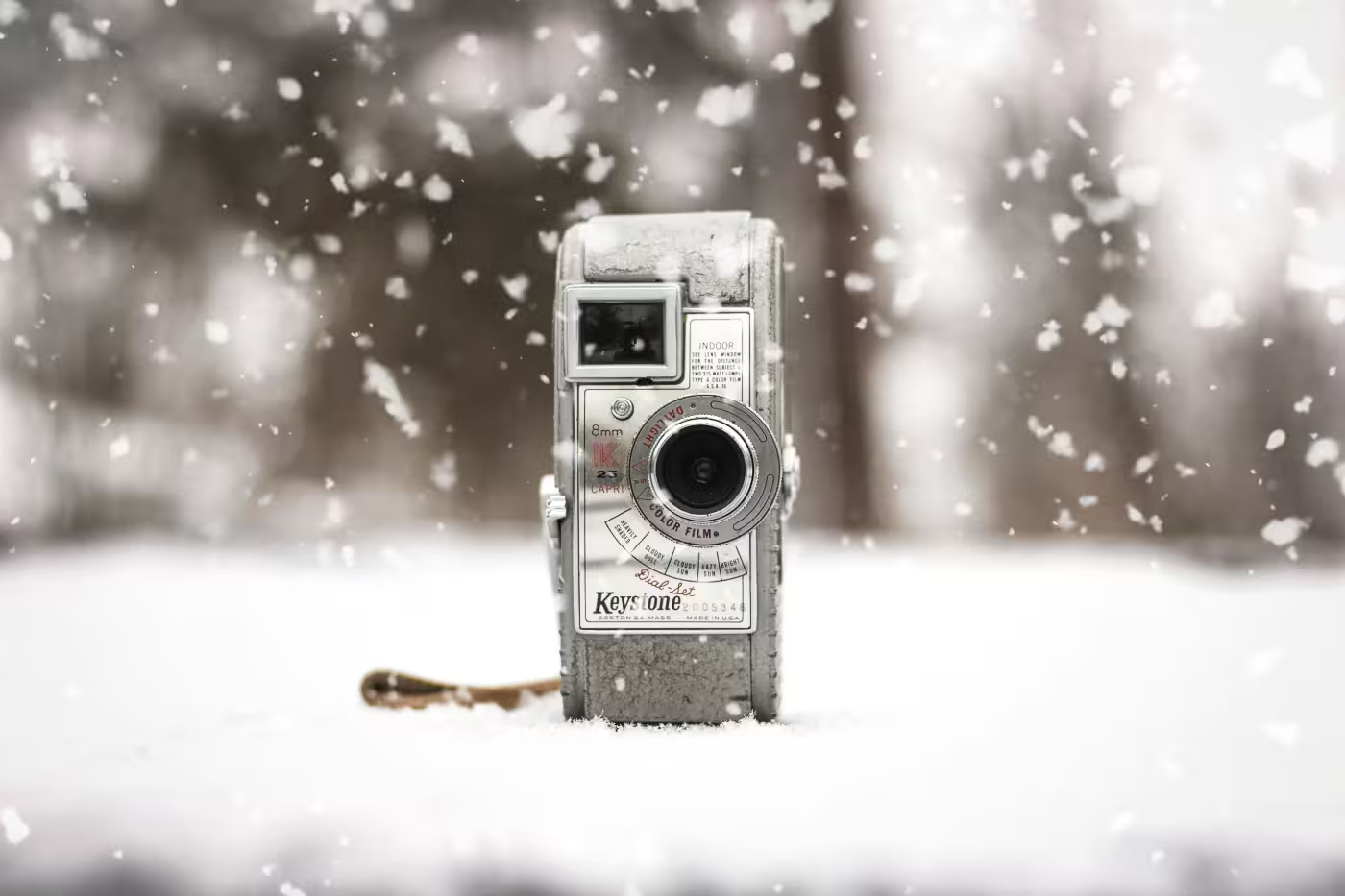
- Concept: Soft, magical snow (Bokeh) implies a premium gift.
- Execution: Large, blurry flakes, warm lighting, low intensity.
- Best For: Luxury items, jewelry, perfumes.
3. The "Winter Proof" Test
- Concept: Show the product surviving the elements.
- Execution: Sharp, driving snow with a diagonal rotation (wind).
- Best For: Boots, coats, outdoor gear, car accessories.
Final Thoughts
You don't need a new budget to create a new campaign. By repurposing your best-performing assets and simply choosing to add snow to image backgrounds, you refresh your brand for the season instantly.
Get your ads ready for the holiday rush. Seasonalize your photos now before the CPMs go up.
