
Advanced Watermark Tool Released: 9 Pro Features
ImagiTool's advanced watermark tool launches today with anchor presets, relative scaling, dynamic tokens, filename templates, and multi-layer batch control.

Deb Miller
Senior Visual Effects Artist & Photo Editor. Expert in atmospheric overlays, color grading, and digital compositing.

I still remember losing a real estate client because my watermark workflow broke under pressure. We had 186 listing photos, three brand variants, and two delivery deadlines. My old setup looked fine on a single image, then failed on mixed aspect ratios, duplicated filenames, and uneven logo sizes the second I ran a full batch.
That is exactly why we rebuilt our advanced watermark tool from the ground up. Today, we are releasing nine major upgrades built for production teams, not just one-off edits. If you watermark at scale for photography, ecommerce, agency work, or listings, this update is built for your day-to-day reality.
Quick Answer
Yes, ImagiTool now ships an advanced watermark tool with anchor-based positioning, relative scaling, dynamic text and filename tokens, reusable presets, multi-layer watermarking, per-image overrides, snap guides, numeric controls, and high-performance worker exports for 100+ images.
Try it now: Watermark Image Tool
Also Published on Medium
For a broader side-by-side market comparison, read our published Medium breakdown: 6 Best Free Bulk Watermark Tools in 2026: Which Is Worth It?.
Why Advanced Watermarking Actually Matters
- Brand consistency at scale: Your logo overlay, opacity, and placement remain stable across mixed image sizes.
- Faster client delivery: Presets and batch naming remove repetitive manual setup.
- Better theft deterrence: Multi-layer patterns and smarter positioning make unauthorized reuse harder.
- Less rework: Per-image overrides fix exceptions without breaking your global settings.
- Higher output quality: Deterministic rendering and worker-based processing keep exports reliable.
If you skip this, you end up paying the hidden tax: manual repositioning, broken naming, re-exports, and missed deadlines.
9 New Features Released Today
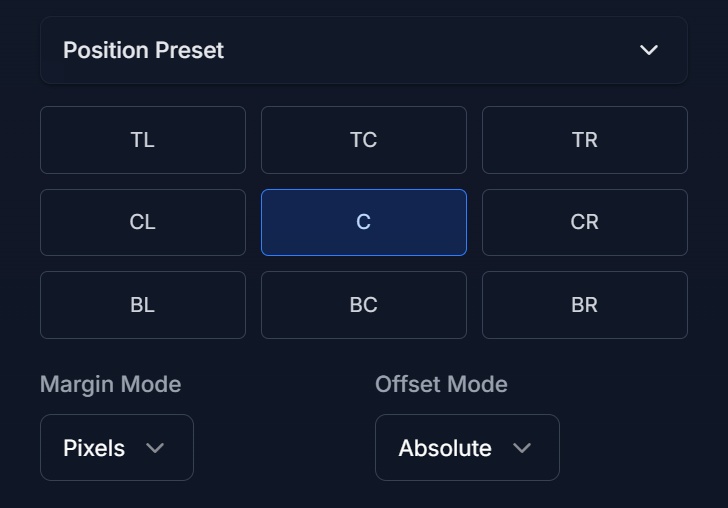
1. Position Presets + Anchor Grid
Why it works:
- Locks placement to nine proven anchors (top-left to bottom-right).
- Keeps visual alignment stable even when aspect ratios change.
- Converts manual drag into smart offsets without losing the selected anchor.
Best for: Photographers, listing teams, and marketplaces that process mixed portrait/landscape batches.
How to use it: Select an anchor, set margin mode (pixels or percent), then fine tune offset X/Y. If you drag manually, offsets auto-update while the anchor stays active.
Personal insight: This alone removes most "why is my watermark jumping around" complaints in batch workflows.
2. Relative Scaling Modes
Why it works:
- You can scale by fixed pixels, percent width, percent height, or percent short side.
- Watermarks stay proportionally similar across low-res and high-res images.
Best for: Ecommerce catalogs and social teams exporting many dimensions in one run.
How to use it: Set scale mode to percent width for logos or percent short side for text marks. Start around 4% to 12%, then preview on a small and large image before export.
Personal insight: Percent short side gives the most balanced look when your batch includes both vertical and horizontal shots.
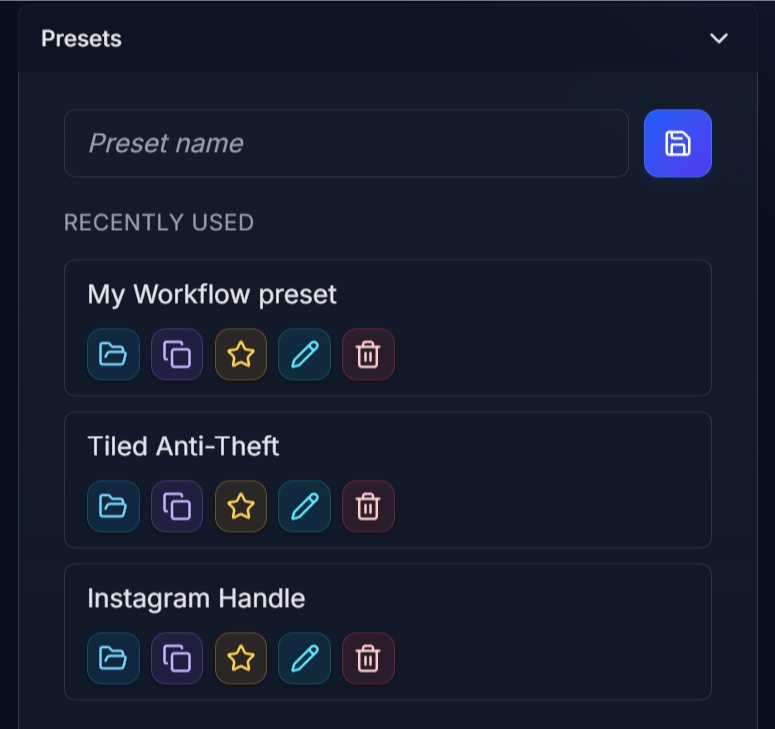
3. Save, Load, and Reuse Presets
Why it works:
- Saves full configurations, not just partial styling.
- Supports rename, duplicate, delete, and default preset loading.
- Includes built-in starter templates for common branding scenarios.
Best for: Agencies and creators managing multiple client identities.
How to use it: Build one setup, save as preset, set default, and reuse per project. Use duplicate when adapting one client style to another.
Personal insight: Preset discipline is the fastest way to cut watermark setup time by more than half.
4. Dynamic Text Tokens
Why it works:
- Auto-inserts contextual values like filename, date, index, width, and height.
- Resolves per image during preview and export.
- Unknown tokens stay unchanged, so templates stay safe.
Best for: Proof galleries, legal markings, and agency deliverables that need metadata in the watermark itself.
How to use it:
Insert tokens like {filename}, {date}, {index}, or {year} into your text watermark. Preview one sample, then export the full batch.
Personal insight: Tokenized watermark text is underrated for audit trails and dispute-proof deliveries.
5. Filename Template Export
Why it works:
- Uses the same token system for output naming.
- Sanitizes invalid filesystem characters automatically.
- Resolves duplicates with deterministic suffixes.
Best for: High-volume handoffs where clean file naming is mandatory.
How to use it:
Set a template like {filename}_watermarked_{date} or {filename}_{index} and verify preview output before export.
Personal insight: Bad naming breaks downstream workflows more than watermark style errors do. Fix naming first.
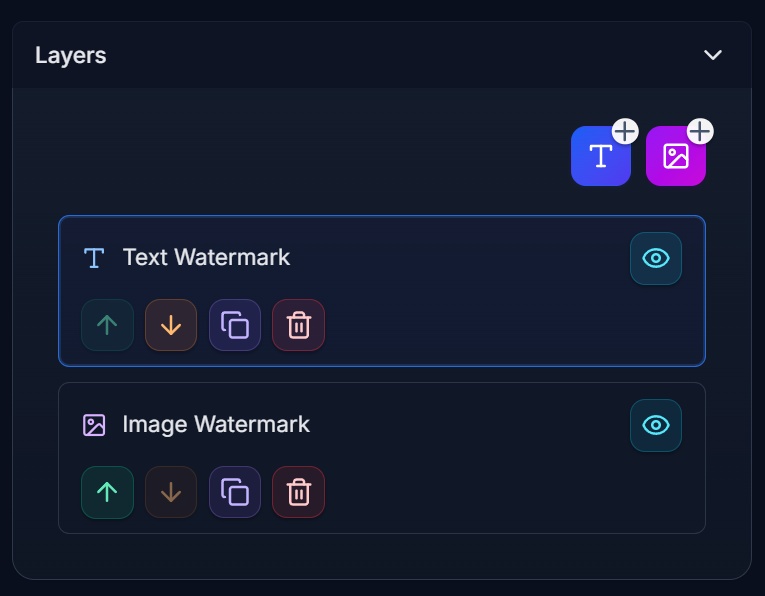
6. Multi-Layer Watermarks
Why it works:
- Combine logo, handle, and copyright text in one composition.
- Each layer gets independent visibility, opacity, scale, rotation, and position.
- Layer order is deterministic in preview and export.
Best for: Professional brand systems that need more than a single static mark.
How to use it: Add layers, reorder by priority, and tune each layer separately. Keep social handle subtler than legal text.
Personal insight: One visible logo plus one low-contrast legal line usually outperforms one oversized watermark.
7. Improved Pattern Controls
Why it works:
- Adds diagonal, grid, horizontal, vertical, and staggered repeats.
- Exposes angle, spacing, scale, offset, opacity, and density controls.
- Supports anti-theft style overlays without noisy overdraw.
Best for: Proof sheets, pre-delivery drafts, and high-risk image categories.
How to use it: Enable pattern mode, start with low opacity, then increase density gradually until removal becomes impractical but image review remains possible.
Personal insight: Most users overdo opacity. Lower opacity with better pattern geometry looks more professional and protects better.
8. Per-Image Overrides
Why it works:
- Preserves a global baseline while allowing local fixes.
- Lets you edit position, rotation, scale, and visibility on specific images.
- Includes "Apply to All" and "Reset Overrides" for safe control.
Best for: Batches where a few photos need exception handling.
How to use it: Open "Edit This Image" on a thumbnail, make your local adjustment, and either keep it local or promote it globally with "Apply to All."
Personal insight: This is the feature that saves the batch when one hero shot needs unique treatment.
9. Snap Guides + Numeric Precision Controls
Why it works:
- Snaps to center, edges, and nearby layer bounds.
- Adds numeric X/Y, rotation, and scale inputs synced with drag behavior.
- Includes keyboard shortcuts for fast micro-adjustment and undo/redo.
Best for: Teams that need repeatable, pixel-level placement standards.
How to use it: Drag to snap visually, then lock exact values in numeric fields. Use arrow keys for 1px movement and Shift + Arrow for 10px movement.
Personal insight: Numeric controls are where "looks close enough" becomes true brand consistency.
How to Do It with ImagiTool in 2 Minutes
Ready to apply these upgrades right now? Use ImagiTool Watermark Image and run this quick flow:
- Upload your image batch.
- Choose text, image, or multi-layer watermark setup.
- Pick an anchor preset and relative scaling mode.
- Add dynamic tokens for watermark text and filenames.
- Save as a preset for future projects.
- Export with worker-based batch processing.
If you want placement fundamentals first, read Best Watermark Placement Spots. If you are choosing style direction, compare Logo vs Text Watermark. If legal coverage matters, review Watermark Photos Copyright Legal Guide.
Why This Release Is Different
Many tools offer one or two of these controls. Very few ship all of them together in one browser-local batch workflow, and even fewer keep preview, thumbnail, and export behavior aligned under load.
That matters because real production work is never "just place a logo in the corner." It is consistency, naming hygiene, per-image exceptions, and reliable output speed.
For broader context on watermark protection, see Digital Watermarking on Wikipedia and WIPO copyright resources.
FAQ
Is this advanced watermark tool free to use?
Yes, you can start and process images directly in your browser without installing desktop software.
Can I watermark 100+ images without freezing my browser?
Yes. The new pipeline uses worker-based processing and debounced preview updates to keep the editor responsive.
Can I use both logo and text in the same export?
Yes. Multi-layer watermarking lets you combine both and control each layer independently.
Do filename templates handle duplicates automatically?
Yes. Duplicate output names are resolved automatically using deterministic suffixes.
Can I keep one global setup but tweak a few specific photos?
Yes. Per-image overrides let you edit exceptions without mutating your global configuration.
Final Take
If you batch brand images professionally, the gap between "basic" and "production-ready" is huge. This release closes that gap. Our advanced watermark tool is now built for consistent placement, reusable presets, dynamic metadata, precise controls, and fast exports at real batch scale.
Open the Watermark Image Tool and test your own workflow today.


